

Kiosk forms are available only for EHR users. This article explains the following.
A. How to Upload Kiosk Forms to the Portal.
B. How to view Kiosk forms uploaded at the portal
A. Upload Kiosk Forms To Portal
1. Select the template from Clinical Desktop.
2. Choose Level 1 and Level 2.
3. Save it as Complete.
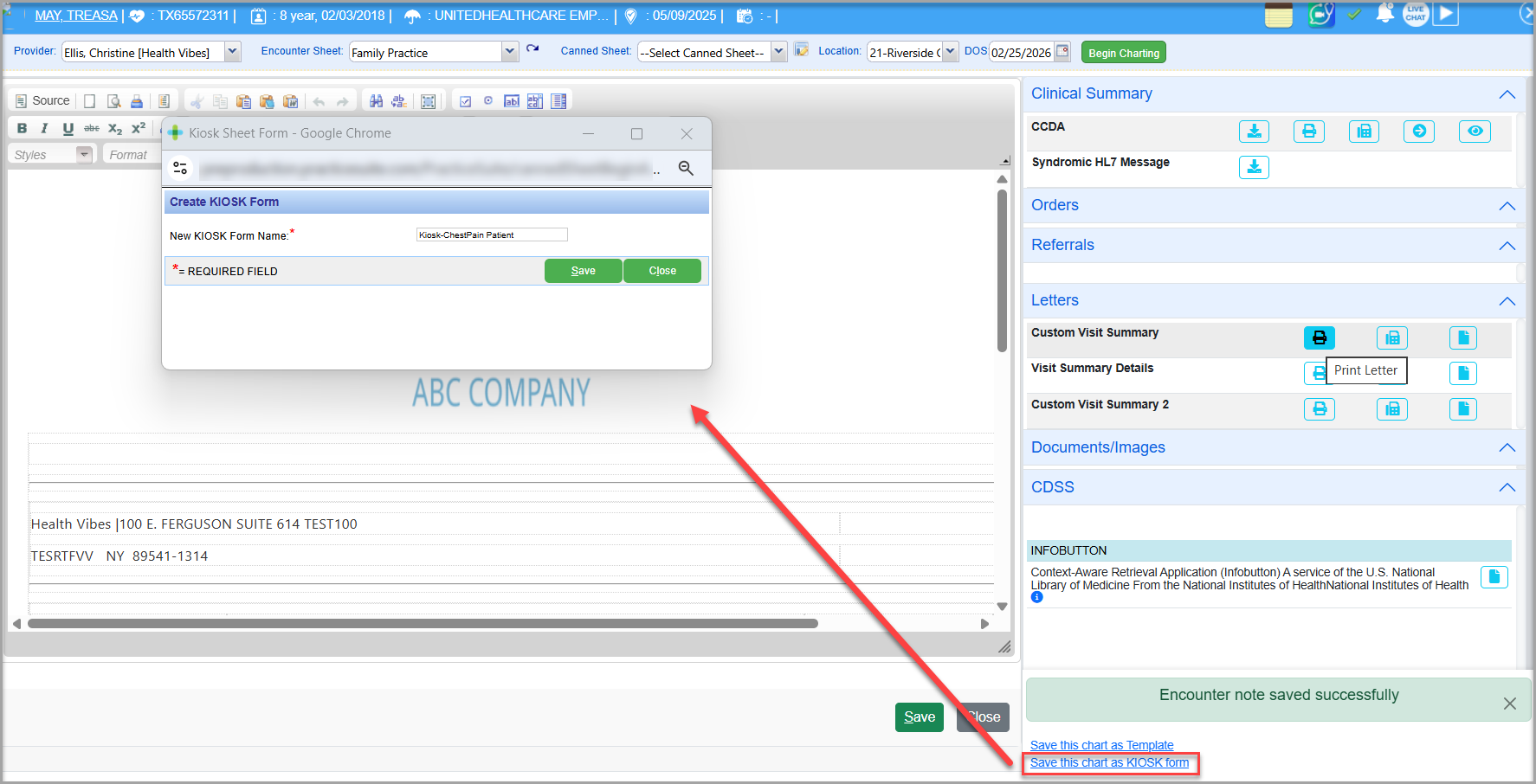
4. At the bottom of the screen, you will find the option ‘Click here to make a Kiosk Form’; click on it (see image below).
5. Provide a name for the Kiosk Form and save it. The form will be available on the portal.
B. View Uploaded Kiosk Forms at Patient Portal
1. From the home page, click the Launch button of Patient Forms (highlighted in the image below).
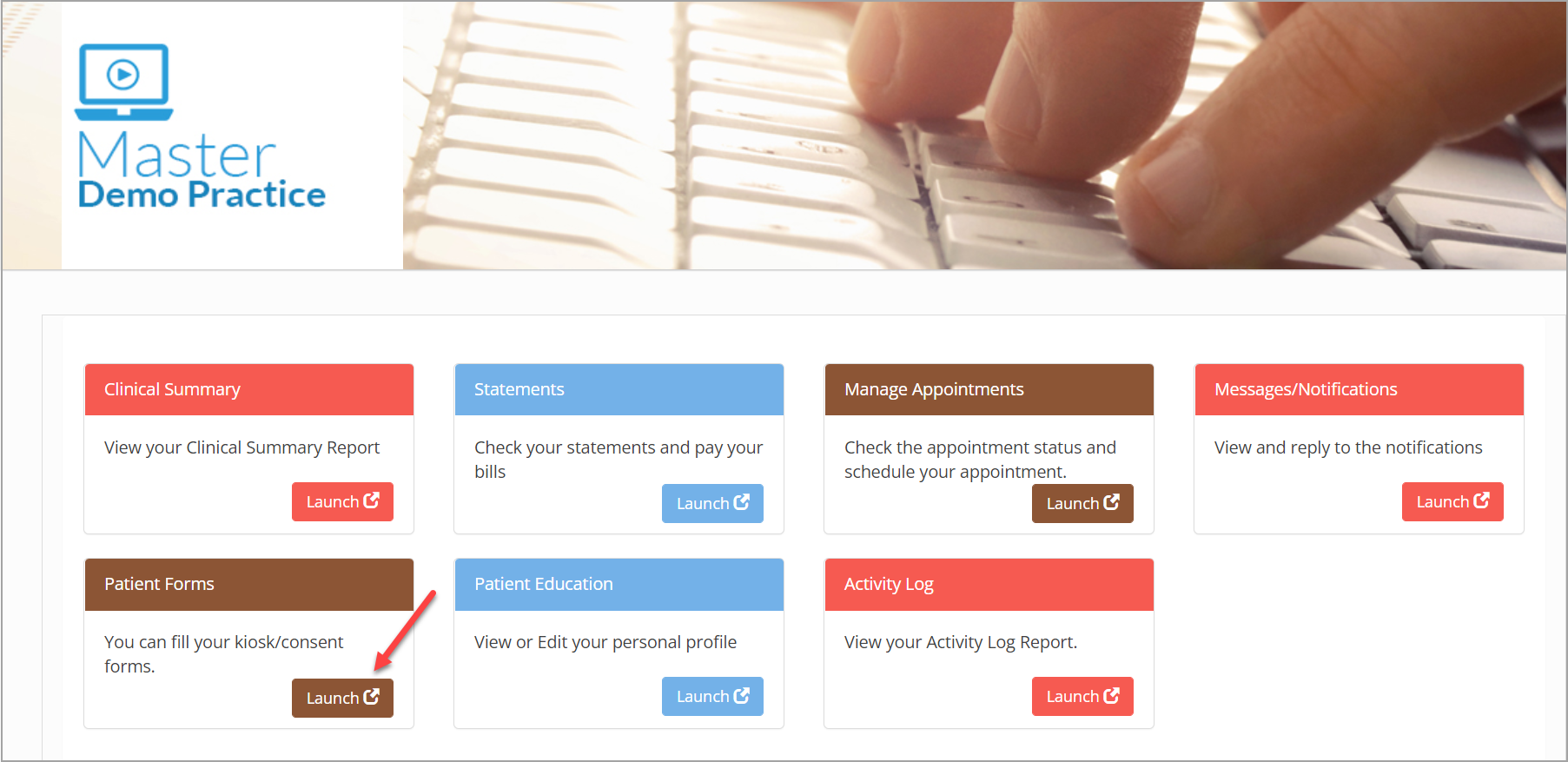
2. The Kiosk Forms/Consent Forms screen opens, where the saved kiosk form will be shown in the list.
Was this helpful?
Thanks for your feedback!