
Description
The K3 report categorizes and displays patients according to their health parameter values.
Significance
1. K3. Patient Clinical Analysis Report has been updated to comply with 170.315(b)(10) Electronic Health Information Export (Cures) criteria. To view the publicly accessible hyperlink of the export’s format, click here.
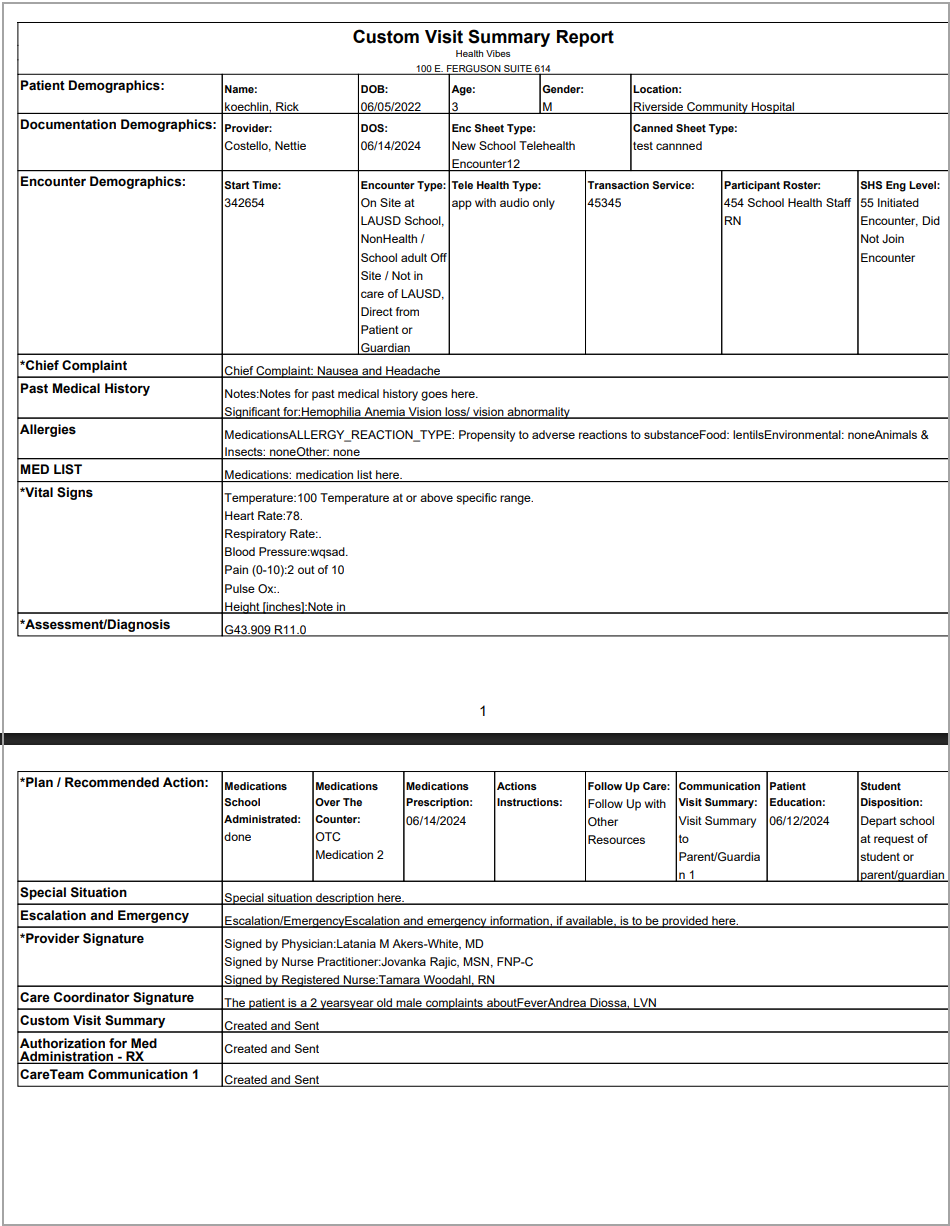
2. The K3 report includes a custom visit summary report. A  icon is available to generate it. The report is organized with separate pages for each patient and encounter.
3. To export patient-specific C-CDAs and documents, a patient smart search option has been included in the K3 Report.
4. To selectively download patient documents, the K3 report has a Patient Document section with search fields for document type and document creation date. Users can select multiple documents at once by pressing Ctrl.
5. Patient EHI (both single patient and patient population) are exported in a zip folder in CCDA format. Patient Documents will be exported in their original format in a separate zip folder.
Search Filters for the K3 Report
The search parameter List of K3 report enables users to search patients by their body vitals like BMI, BP, Body temperature, heart rate, height, weight, etc. It can also be used to search for patients depending on their face sheet parameters, lab orders, lab results, radiology, diagnoses, etc.
Single patient search and patient population search are possible with the K3 report. Single patients can be searched using the patient Smart Search field.
Search Screen of K3 Report
Summary Screen

Details Screen

Sample K3 Result
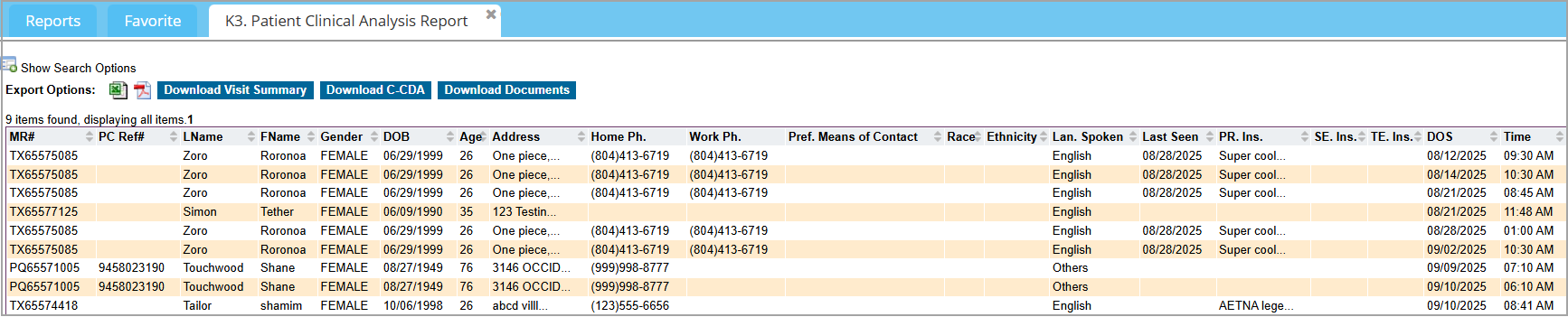
Export Options Provided for K3 Report
| Output | Download and View Sample |
 |
This generates an Excel export of the patient list |
 |
This is the list generated in PDF format |
|
Custom Visit Summary report is generated for each encounter of all the patients filtered. |
 |
Single Patient: Zip file will contain an XML file with name format “<PatientFirstName>_<LastName>_<MR#>_CCDAhl7V3Xml_<time stamp in ms>.xml” having full CCDA summary of the patient Patient Population: Zip file will contain an XML file for each patient with the above name format |
 |
Single Patient: The main zip folder will contain another zip folder within it named in the format ”<PatientFirstName>_<LastName>_<MR#> .zip”- this will hold all available documents in the format “<File Name>_<Category>[file]” Patient Population: The main zip folder will have separate zip folders for each patient with the above name format each containing all available documents in the format “<File Name>_<Category>[file]” |
Custom Visit Summary Report Setup
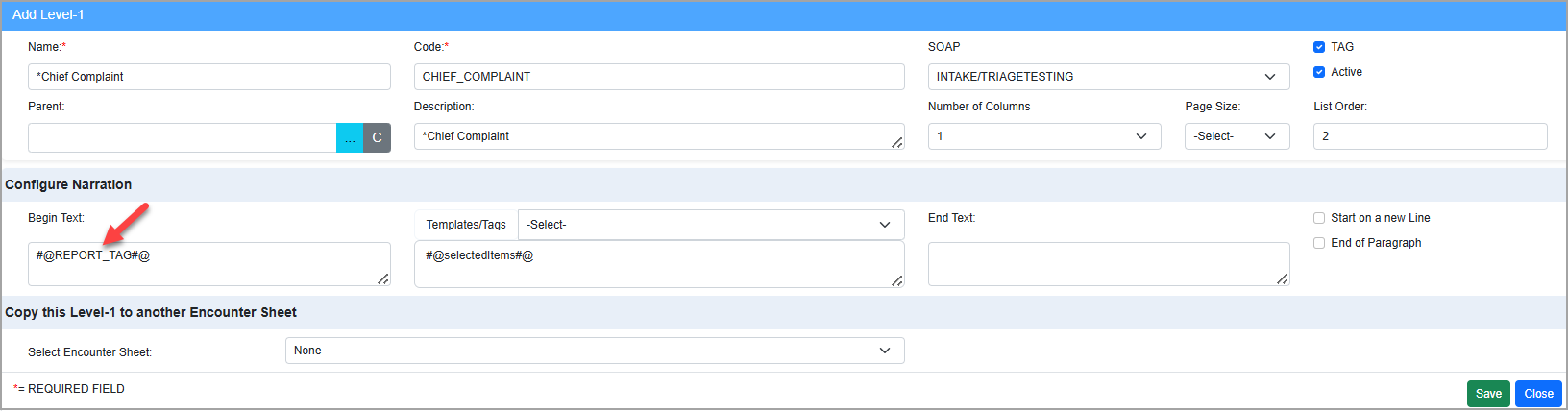
To populate a patient’s chart information in the custom visit summary report, the required level1 should have the tag #@REPORT_TAG#@ in the Begin Text field.
A Sample Custom Visit Summary Report