
Multi-Attach Functionality for Claims
Many electronic payers receive and use supplemental information through the Paperwork (PWK) segment as defined in the Health Care Claim 837 Implementation Guide. The PWK segment provides the ‘linkage’ between electronic claims and additional documentation that is needed for claims adjudication.
The new multi-attach functionality streamlines the submission of multiple attachments (supplemental claim information) for primary insurance claims. By automatically linking uploaded documents to the specific patient encounter, the system ensures centralized document management directly within your billing workflow.
Claim Attachment Information Screen
A new integrated screen within the Charge Master allows users to upload attachments and input related details directly at the encounter level.
Users can view, add, edit, or delete attachments and manage key metadata, including the Attachment Control Number (ACN), Type Code, and Transmission Code.
How to Attach Documents To Claims
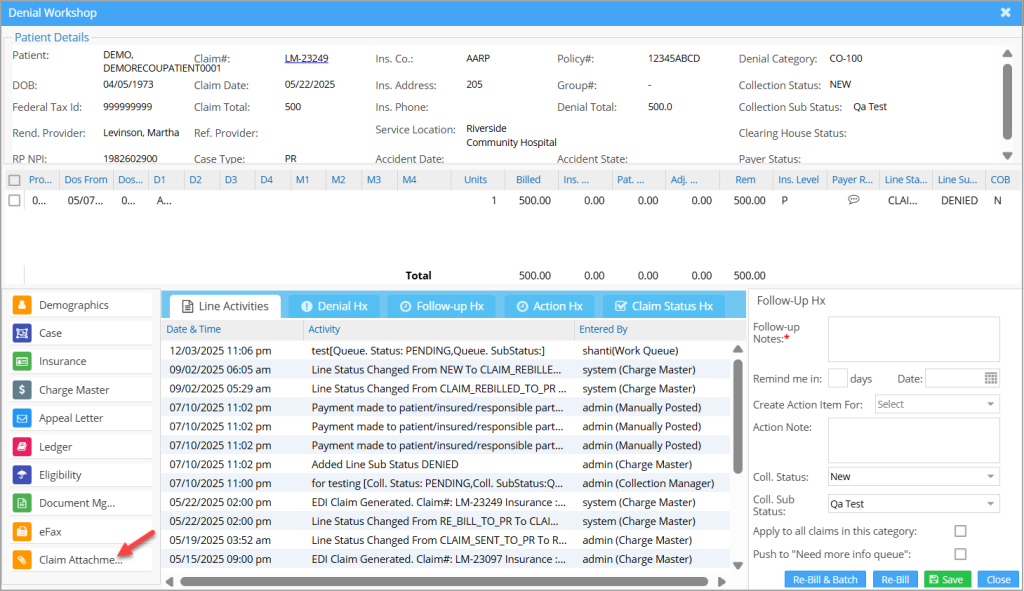
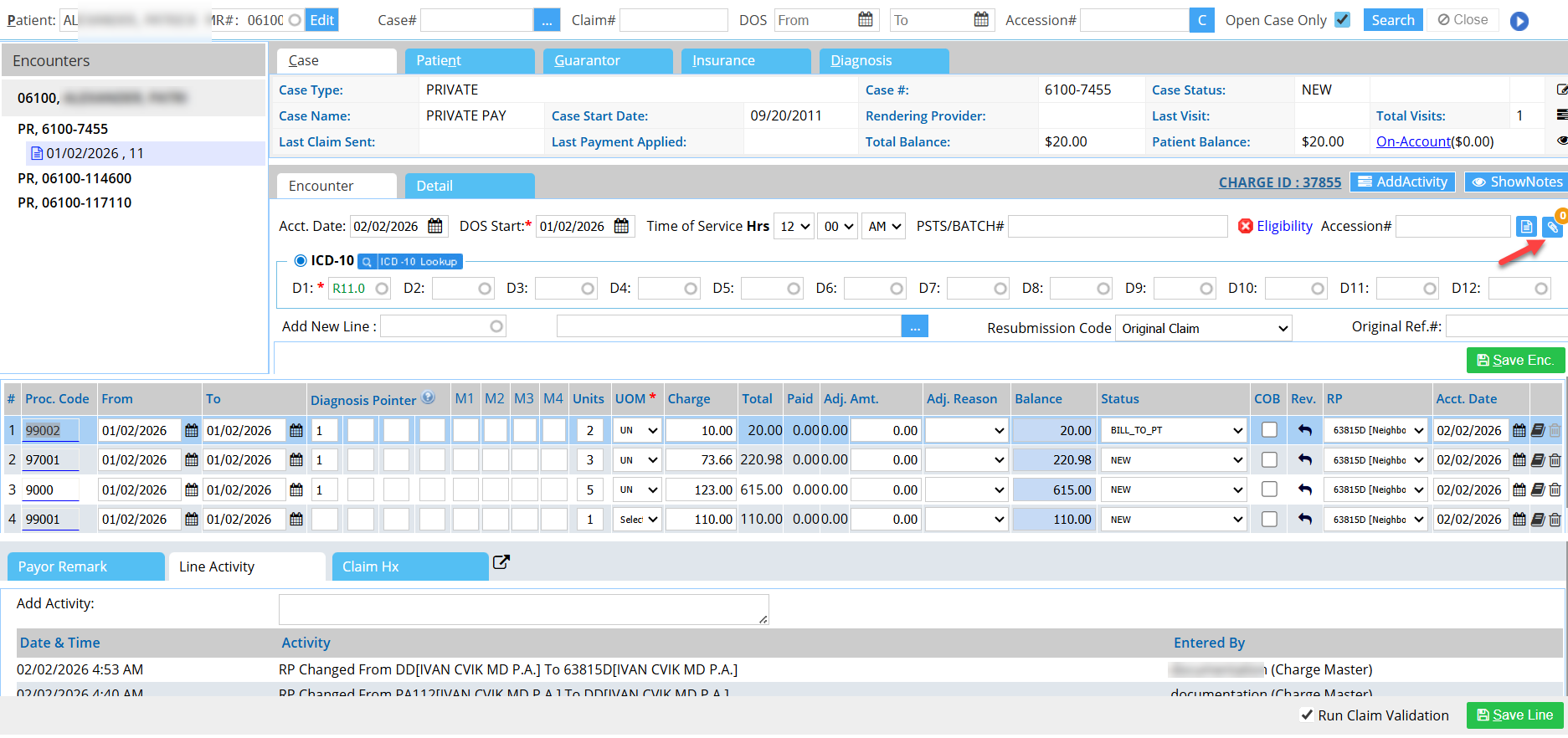
1. Go to Charge Master and click on  icon in the encounter section—the Claim Attachment Information screen pops up, from which you can select multiple documents to be sent along with the claim.
2. For each file attached, provide the Attachment Control #, Report Type Code, and Transmission Code.
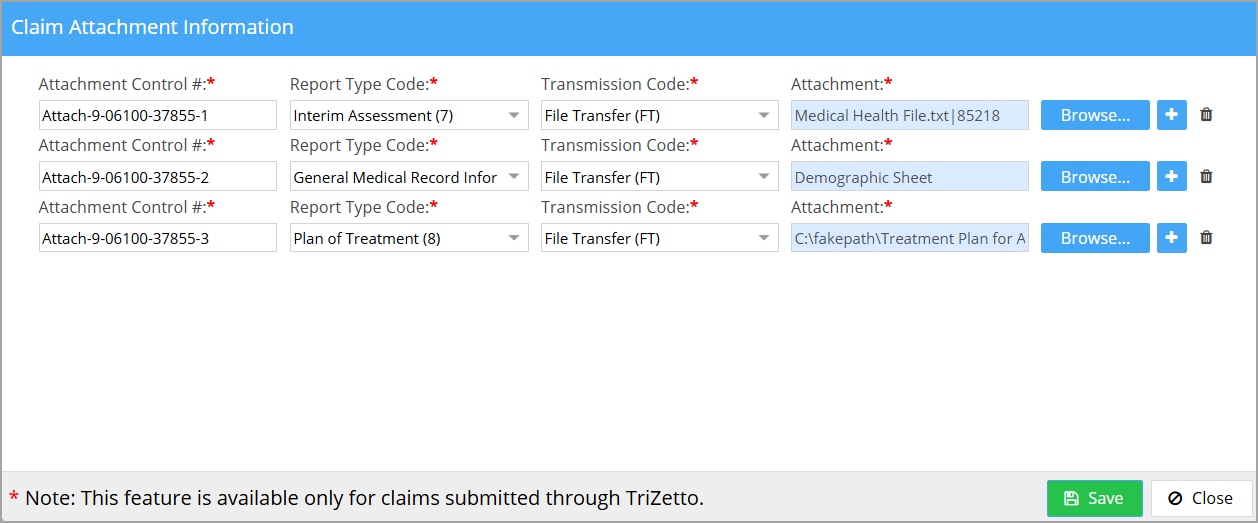
3. Click on Save after attaching all documents.
4. PracticeSuite adds the PWK information in the PWK segment of the claim.
| Fields in the Claim Attachment Screen | Description |
| Attachment Control # | The system generates a unique number; Users can edit it if needed |
| Report Type Code | Code indicating the type of document attached. Drugs Administered -4 Treatment Diagnosis -5 Initial Assessment-6 Interim Assessment-7 Plan of Treatment-8 etc. |
| Transmission Code | This field indicates the method of transmission. By Mail – BM Electronically – EL Email – EM By Fax – FX File Transfer – FT |
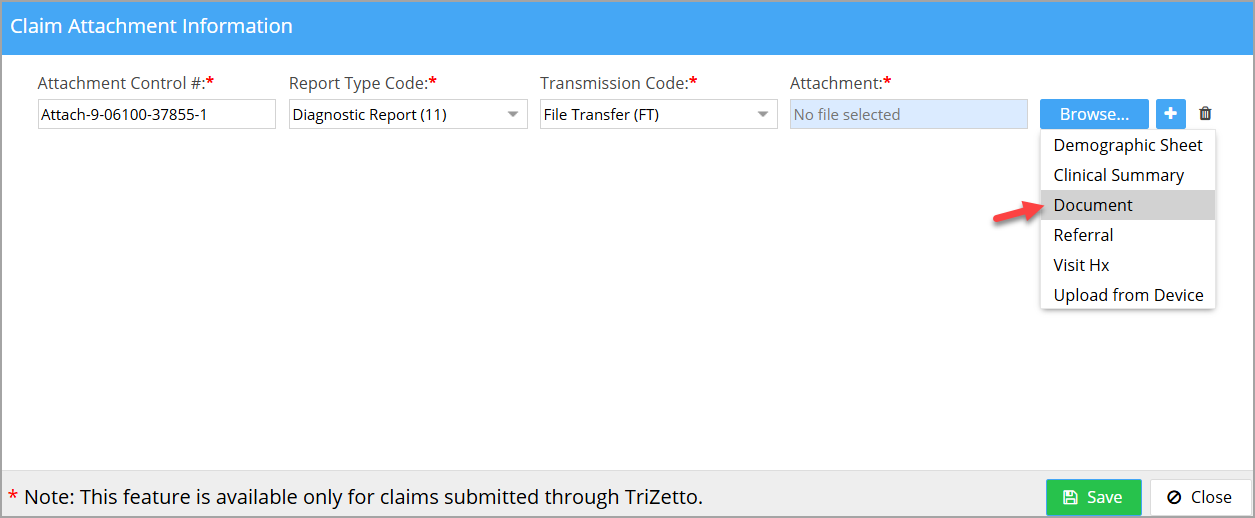
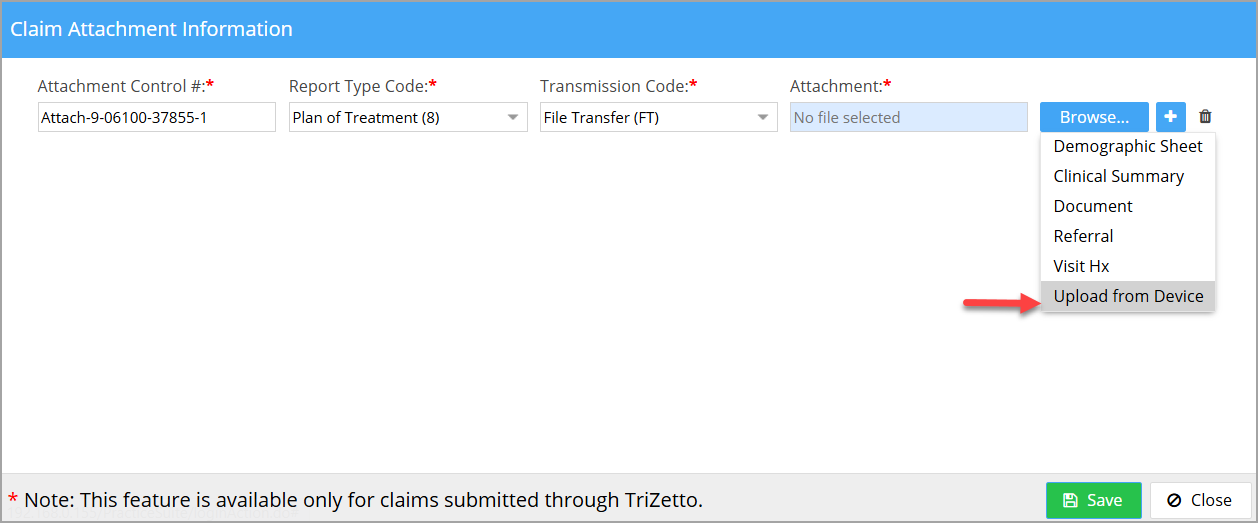
| Attachment | Demographic sheet/Clinical Summary/Patient Document/Referral/Visit Hx/Upload from Device |
Attaching Files from Document Manager
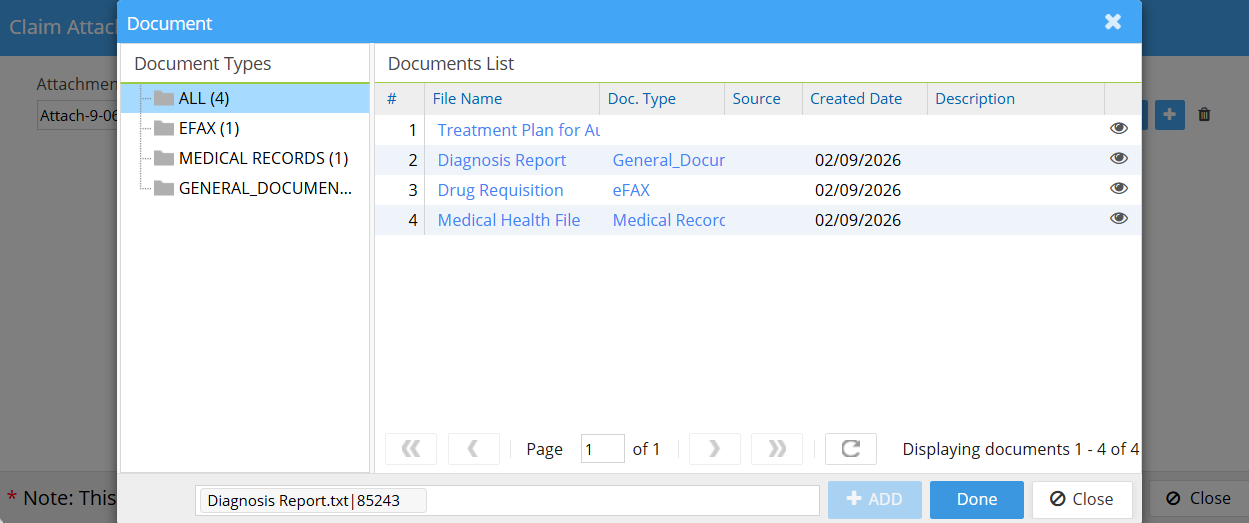
1. To attach patient documents uploaded in PracticeSuite’s Document Manager, click on Browse → Document.
2. Patient’s Document Manager opens up, from which the user can add documents. Add the required documents and finally click Done.
Uploading Files from the Device
1. To attach files from your computer, click Browse → Upload from Device.
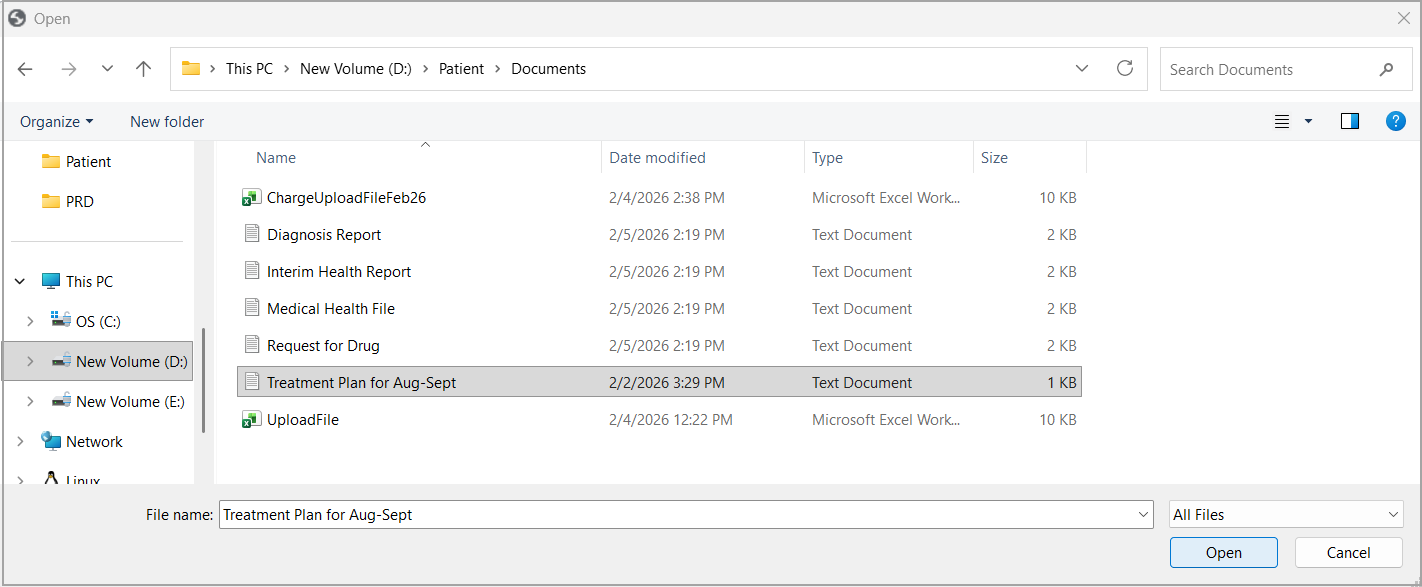
2. When the file explorer window opens, select the file and click Open.
Note: Electronic attachment submission is currently supported only for primary insurance claims sent through Trizetto.
Screens to Access Multi-Attachment Feature
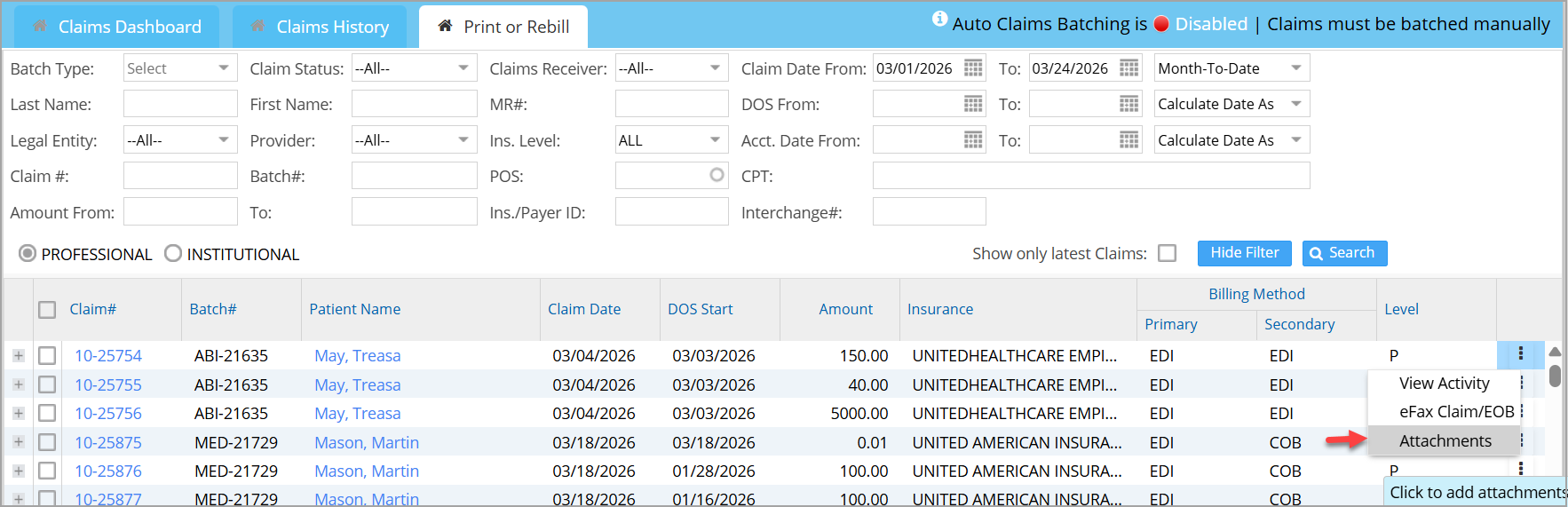
The multi-attachment functionality for claims is available across several additional workflows. In addition to the Charge Master, users can access the attachment section files from the following screens:
1. Ready To Submit bucket
2. Print/Rebill tab in Claims Workbench
3. Collections Manager